Geological events in the modeling workflow
Within the JewelSuite family of products, the term geological event, or just event in some cases, is used to describe a boundary. This can be a stratigraphic boundary (e.g. a 'horizon' or 'unconformity'), a structural boundary (e.g. a 'fault', 'fracture' or 'fault polygon') or 'another type' of boundary (e.g. a 'fluid contact', 'map', 'inflection', 'mesh boundary'). When developing the stratigraphic model, events are used to define the hierarchy of the zonations and play an important part in how your 3D model will eventually be constructed.
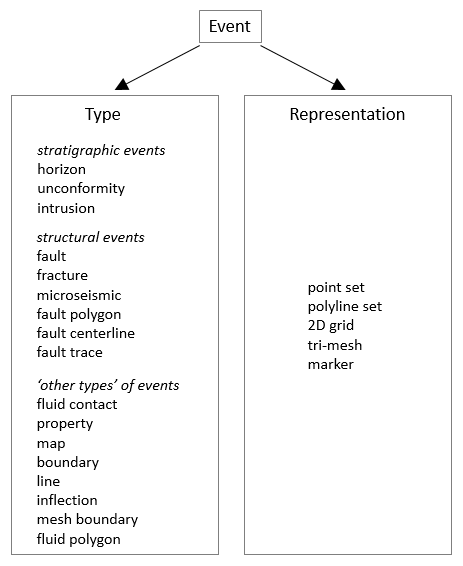
Overview of all 'event types' in the application. Depending on the type, an event an be represented by one or more different representations. click to enlarge
Events and their geometric representations
Events can be represented by one or more geometric representations. A geometric representation refers to the underlying data that defines the event. In JewelSuite Geomechanics the following geometric representations are available: tri-mesh, 2D grid, polyline set, point set and marker. The ability to have multiple geometric representations of the same event is an advantage when working with different data sources and/or disciplines, for example when working with markers during well correlation, polylines during seismic interpretation and tri-meshes when working with (existing) surfaces.
- Geometric representations within an event - Within a geological event, each geometric representation is only allowed once. For example, an event with a tri-mesh and a 2D grid is allowed, but an event with two tri-meshes is not.
- Events across multiple models and data sources - The same event can exist in multiple models (e.g. 'Fault Model 1', 'Fault Model 2', 'Structural Model 1') and data sources (i.e. 'Data', 'Surface Set', 'Seismic Interpretation' or 'Marker Set' in the JewelExplorer) to represent different scenarios or evolutionary stages of the modeling process. Each model or data source can, however, contain the geological event just once. For example, Fault Model 1 and Fault Model 2 can both contain fault F10, but each fault model can only contain fault F10 once; the data sources 'Surface Set 1' and 'Surface Set 2' can both contain fault F10, but each Surface Set can contain fault F10 just once.
If your aim is to model different scenarios, you can create, for example, multiple tri-meshes for the same fault F10. These tri-meshes represent different interpretations of fault F10, which you can use in multiple fault models. These rules ensure that every model and data source contains a consistent set of surfaces, where each event occurs only once. These consistent sets of surfaces can then be used to model different scenarios in an organized manner.
Using events in the workflow
In the Stratigraphic Modeling workflow, events are assigned as boundaries to the zonation in your stratigraphic hierarchy. Once they are assigned to a model its geological type cannot be changed. For this reason, it is important that the geological types are properly appointed to events before proceeding through the modeling workflow. Keep also in mind that in some of the workflows that follow, such as Structural Modeling and 3D Gridding, events can only be reviewed and not changed to another geological type.
Renaming and associating events
There are three options available for renaming events:
 Manual renaming in the JewelExplorer
This option also changes the name in the models in which the event is used. If the horizon H1 is assigned to 3D structure and 3D grid models, the new name is also used in those models.
- Double-click the name of the event in the JewelExplorer. This will activate the text field so that you can provide a name.
- Rename the event as desired and press Enter.
- If the event is already used in a model a notification appears to inform you that the new name will be applied in those models as well. Click OK to accept the change, click Cancel to discard the change.
Associating surfaces and events
- In the data source (i.e. Surface Set or Seismic Interpretation) in the JewelExplorer, right-click the event to open the context menu.
- In the context menu, select Associate and rename to. Select one of the events to create the association. The event takes the name of the selected event. Note that the events available for selection are all events present in your solution minus the events already present in the source from which you perform the action (because an event cannot occur twice in the same data source).
To disassociate events:
- In the data source in the JewelExplorer, right-click the event that you want to disassociate and rename. This will open the event's context menu.
- Select Disassociate and rename. The association is removed and the event is free to be renamed. If the event has been used in a model already, you will need to remove the event from the model before disassociating it.
Associating markers and events
- In the Well Data > Marker Sets folder of the JewelExplorer, right-click the marker to open it's context menu.
- Select Associate and rename to. Select one of the events to create the association; the event takes the name of the selected event. Note that the events available in the list are all events present in your solution minus the events in the data source from which you perform the action. The 'original' event takes the name of the selected event.
To disassociate events:
- In the Well Data > Marker Sets folder of the JewelExplorer, right-click the event that you want to disassociate. This will open the marker's context menu.
- Select Disassociate and rename. The association is removed and the marker is free to be renamed.
Merging events
To merge two events (surfaces only) into to one event, right-click an event and select Merge with, and then select a second event. After the merge, all geometric representations will exist under the second event; the initial (merged) event name no longer exists.